Code Blocks - Showing Examples
When you're writing a specification that says:
"The program should greet the user and show the current time."
An AI agent could generate code that prints:
- "Hello"
- "Hello World"
- "Hello! Time: 2:30pm"
- "Greetings, human. Current time: 14:30:00"
Which one do you actually want?
Now imagine you show the exact output:
```text Hello! The time is 14:30:00 ```
Suddenly there's no confusion. The AI knows exactly what format to use.
Code blocks let you show expected output, code examples, and command syntax directly in your specification. This lesson teaches you how to use them effectively.
Concept 1: Fenced Code Blocks (Multiple Lines)
Use fenced code blocks when you need to show multiple lines of code or output.
Basic Syntax
Create a fenced code block with triple backticks (`):
Line 1 of code or output
Line 2 of code or output
Line 3 of code or output
Type three backticks, press Enter, type your code, press Enter, then type three more backticks. Everything between displays exactly as you type it (no markdown formatting applied).
Example: Showing Expected Output
Here's a specification for a task list app:
In your README.md:
When the user views tasks, they should see:
Then add a code block showing the expected output:
Tasks:
1. Buy groceries [Pending]
2. Call dentist [Complete]
3. Submit report [Pending]
The AI agent sees this and knows: "The output must show task number, description, and status on each line."
Example: Showing Program Code
In your spec:
def add(a, b):
    return a + b

result = add(5, 3)
print(result)  # Should print: 8
This shows the AI: "This is what the code should look like."
💬 AI Colearning Prompt
Explore with your AI: "I'm learning about code blocks in markdown. Can you show me what happens when I specify expected output in my specification vs when I don't? Create two versions of a spec for a greeting program—one with a code block showing exact output format, one without. Then explain which would produce more consistent results."
Concept 2: Language Tags (For Clarity)
Add a language tag right after the opening backticks to specify what type of code it is.
Syntax
Type three backticks, then the language name, then your code:
print("Hello, World!")
The word python is the language tag. It goes right after the opening triple backticks (no space).
Common Language Tags
Use these tags based on what you're showing:
python- Python codebash- Terminal commandstext- Plain output (no code)typescript- TypeScript codejson- Data formatsyaml- Configuration files
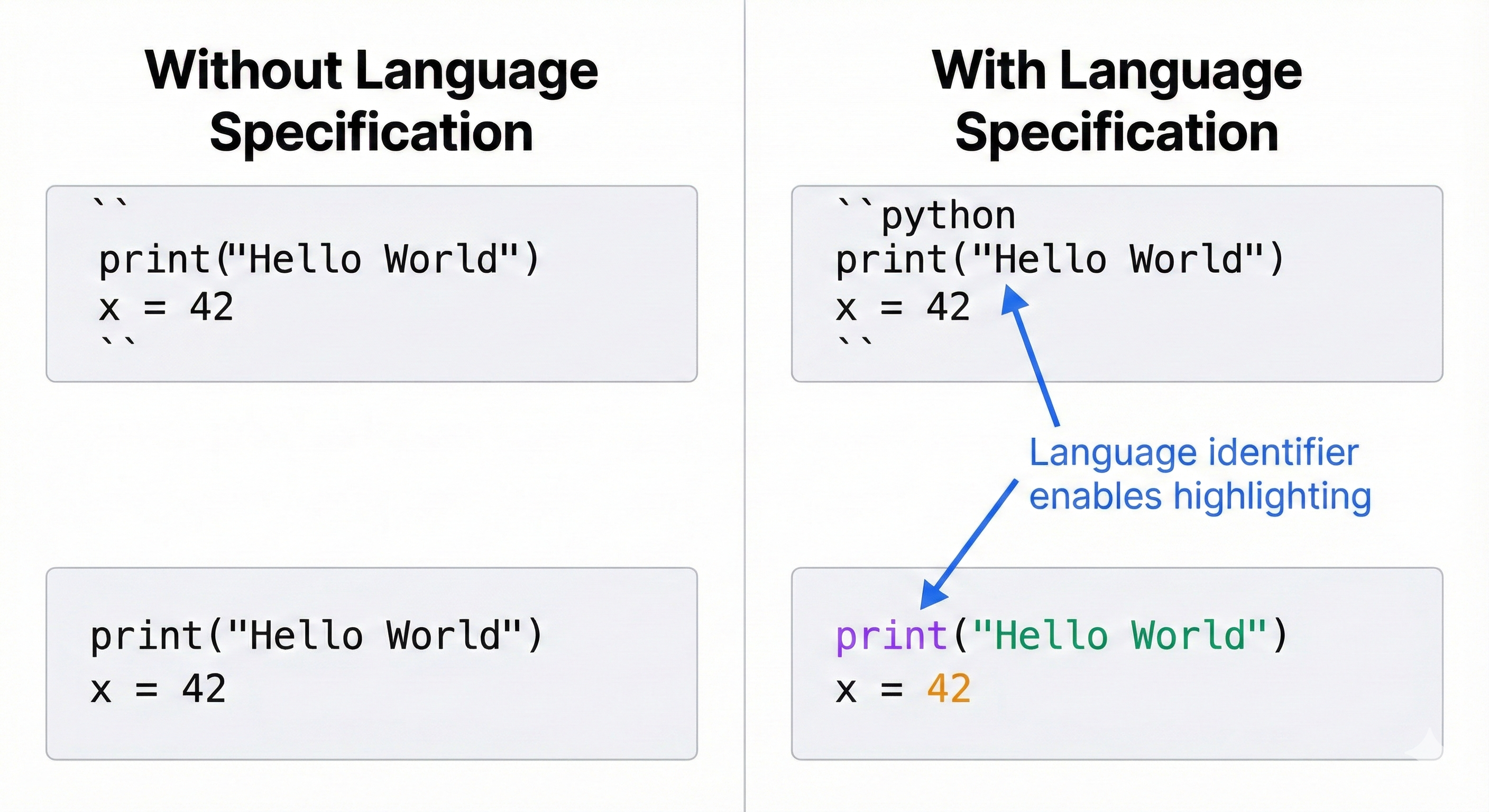
Why Language Tags Matter
Language tags help:
- Readers understand what they're looking at
- AI agents know what language to generate
- Code viewers apply correct syntax highlighting
Example: Installation Commands
In your README:
pip install requests
python app.py
The bash tag tells the AI: "These are terminal commands, not Python code."
Example: Python Code
Show example code like this:
def greet(name):
    return f"Hello, {name}!"

print(greet("Alice"))
The python tag makes it clear this is Python code to implement.
🎓 Expert Insight
Language tags do more than just enable syntax highlighting. They tell AI agents which language interpreter to use, which libraries might be available, and which syntax rules apply. When you tag a block as
python, the AI knows to generate Python 3.13+ syntax. When you tag it asbash, the AI knows these are shell commands. This prevents the AI from mixing syntaxes or generating code for the wrong language—a common error when language context is ambiguous.
Concept 3: Inline Code (Single Backticks)
Use inline code for short code references within regular text - like variable names, commands, or file names.
Syntax
Use single backticks (`) around the code:
Install the package with pip install requests command.
The app.py file contains the main function.
Set the DEBUG variable to True for testing.
When to Use Inline Code
Use single backticks for:
- Command names:
python,git,npm - Variable names:
user_name,total_count - File names:
README.md,app.py - Function names:
calculate_total(),get_user() - Short code snippets within sentences
Example in a Specification
In your spec, write:
- Install Python 3.9 or higher
- Run
pip install requeststo install dependencies - Create a file named
config.pywith your API key - Run the program with
python weather.py
See how it works?
- Commands like
pip install requestsare in backticks - File names like
config.pyare in backticks - Function names like
get_weather()are in backticks
This makes the specification much clearer.
🤝 Practice Exercise
Ask your AI: "Here's a specification without inline code formatting:
'Run pip install requests to install dependencies, then edit config.py with your API key, and run python weather.py to start the app.'
Rewrite this with proper inline code formatting using backticks. Then explain why the formatted version is clearer. What happens if I don't format command names—how does that affect readability?"
Fenced vs Inline: Which to Use?
Use Fenced Code Blocks (triple backticks) when:
- Showing multiple lines of code
- Displaying expected program output
- Sharing code examples to implement
- Showing error messages
Use Inline Code (single backticks) when:
- Mentioning commands in a sentence
- Referring to variable or function names
- Listing file names
- Writing short code snippets in text
Side-by-Side Examples
Fenced block (multiple lines):
def calculate_total(prices):
    return sum(prices)

items = [10, 20, 30]
print(calculate_total(items))
Inline code (within text):
The calculate_total() function takes a list of prices and returns the sum.
Call it with calculate_total([10, 20, 30]) to get 60.
Practice Exercise: Task Tracker App (Part 3 - Code Blocks)
Continuing from Lesson 3: Open your Task Tracker App specification. You'll now add code blocks to show expected output and clarify commands.
Your Task for Lesson 4
Add code blocks to make your specification more concrete:
Part 1: Add Expected Output Section
Fill in the "Expected Output" section with a fenced code block showing what the program displays:
## Expected Output

When the user runs `python tracker.py`, they should see:

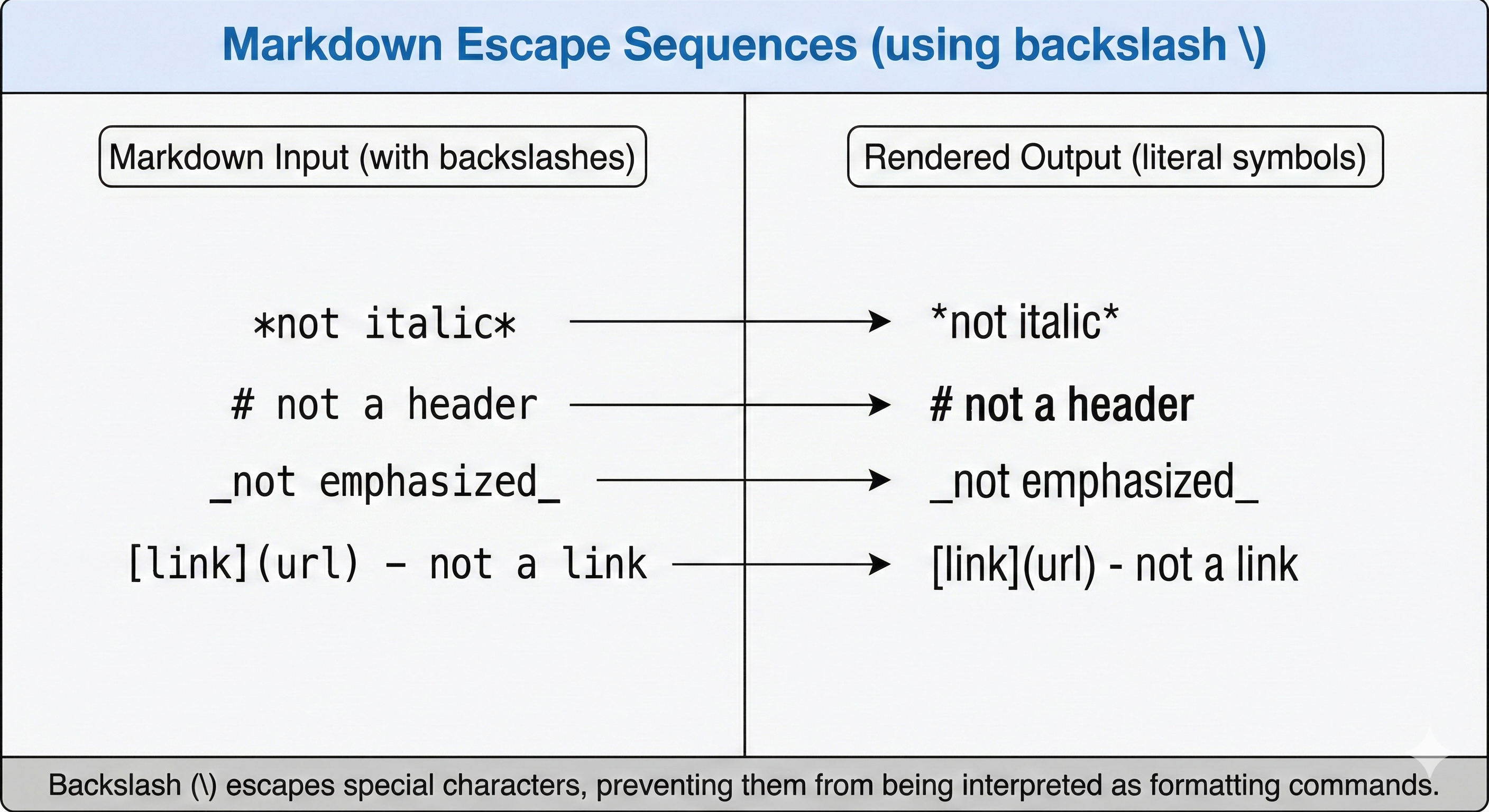
\`\`\`text
Task Tracker Menu
1. Add Task
2. View Tasks
3. Mark Complete
4. Delete Task
5. Exit

Choose an option: _
\`\`\`

When viewing tasks, the display looks like:

\`\`\`text
Your Tasks:
1. Buy groceries [Pending] - Due: 2025-11-08
2. Call dentist [Pending] - Due: 2025-11-07
3. Submit report [Complete] - Done: 2025-11-06
\`\`\`
Part 2: Update Installation Commands
Make sure your installation steps use inline code for commands:
## Installation

1. Install Python 3.9 or higher from python.org
2. Download the task tracker files from GitHub
3. Navigate to the project folder: `cd task-tracker`
4. Run the program: `python tracker.py`
Part 3: Add Language Tags
Ensure your code blocks have the text language tag (since this is program output, not Python code).
Validation Checklist
Check your updated specification:
- Expected output section has at least one fenced code block with
texttag - Code blocks show what the program actually prints (not descriptions)
- Installation commands use inline code (
`cd task-tracker`,`python tracker.py`) - All code blocks have opening AND closing triple backticks
- Output is specific (shows actual menu items, not "menu appears")
Save this file! You'll add links, images, and emphasis in Lesson 5 to complete it.
Common Mistakes to Avoid
Mistake 1: Forgetting Closing Backticks
Wrong:
print("Hello")
(missing closing backticks)
Correct:
print("Hello")
Always close your code blocks.
Mistake 2: Using Inline Code for Multiple Lines
Wrong:
The code is def add(a, b): return a + b (inline code with multiple lines doesn't work)
Correct: The code is:
def add(a, b):
    return a + b
Use fenced blocks for multiple lines.
Mistake 3: No Language Tag When It Matters
Unclear:
pip install requests
Clear:
pip install requests
The bash tag makes it clear this is a terminal command.
Why This Matters for AI
When you use code blocks correctly, AI agents can:
- See exact output format - "The program prints 3 lines with this structure"
- Understand the language - "This is Python code, not bash commands"
- Parse code examples - "This is example code to implement, not expected output"
- Follow command syntax - "These inline codes are commands to run"
Good code block usage = clearer specifications = better AI-generated code.
🎓 Expert Insight
In professional development, code blocks serve as executable documentation. When you show expected output in a fenced code block, that becomes the acceptance test—did the generated code produce exactly this output? This practice, called "specification by example," reduces ambiguity dramatically. Teams using spec-by-example report 60-80% fewer clarification requests during implementation because everyone (human and AI) can see exactly what "correct" looks like.
Try With AI
Validate your Task Tracker App code blocks with AI feedback — and test execution.
Setup
Use ChatGPT web (or your AI companion from earlier chapters).
Exercise
Take your updated Task Tracker App specification (now with code blocks) and ask ChatGPT:
Prompt 1 (Structure Check):
``` I'm learning code blocks in markdown. Can you check if I used the right syntax?
[Paste your specification here]
Tell me:
- Are my code blocks properly closed?
- Did I use appropriate language tags?
- Should any inline code be fenced blocks instead? ```
Prompt 2 (Clarity Check):
``` Based on my specification, can you tell:
- What should the program output look like?
- What programming language is this written in?
- What commands need to be run? ```
Prompt 3 (Implementation + Execution Test):
``` Can you implement a simple version of this Task Tracker App specification? Generate Python code that shows the main menu and displays sample tasks like I specified in the Expected Output section. ```
Expected Outcomes
From Prompt 1: ChatGPT confirms your code block syntax is correct
From Prompt 2: ChatGPT can parse your specification and understand output format, language, and commands
From Prompt 3: ChatGPT generates Python code matching your expected output