Teach Claude Your Way of Working
You've been using Claude Code for a week. You notice something: you keep explaining the same things.
"When I post on LinkedIn, keep it professional but friendly. Use 2-3 emojis maximum. End with a question to encourage engagement."
Or maybe it's study notes: "When I process lecture notes, create a summary first, then key terms, then practice questions. Always end with a quick review section."
You might think: "I should save this prompt somewhere and paste it each time."
That instinct is 10% of the answer—and missing 90% of the opportunity.
The One-Time Investment
You have your unique way of doing things. Your LinkedIn posts get more engagement when you follow your personal style. Your study notes work better when organized your way. Your emails get responses when structured a certain way.
That knowledge lives in your head. Every time you ask Claude for help, you explain your preferences—then they're gone when the session ends.
What if you could teach Claude your style once and have it apply automatically, forever?
That's what skills do. Not saving keystrokes—preserving your personal touch. You invest once in documenting how you work, and Claude applies your style consistently across every future task.
What Skills Actually Are
Think about the difference between a generic assistant and a personal assistant who knows you well.
Generic assistant: "Here's a LinkedIn post about learning AI." Personal assistant who knows you: "Here's a LinkedIn post about learning AI that matches your friendly-professional tone, includes relevant emojis, and ends with an engagement question."
That personalized touch is the difference between generic output and YOUR output.
Claude without skills: A brilliant assistant who helps with anything but always uses a generic approach.
Claude with skills: Your personalized assistant. When you mention LinkedIn, Claude doesn't think "how to write a post?" It thinks "friendly-professional tone, 2-3 emojis, end with question"—because that's YOUR style, loaded automatically.
Simple definition: A skill is your personal style guide. It captures how YOU approach specific tasks—your tone, your structure, your preferences—so Claude creates output that sounds like you.
Remember the scene in The Matrix where Trinity needs to fly a helicopter? She doesn't know how—until Tank uploads the B-212 helicopter pilot program directly into her mind. Seconds later, she's an expert pilot.
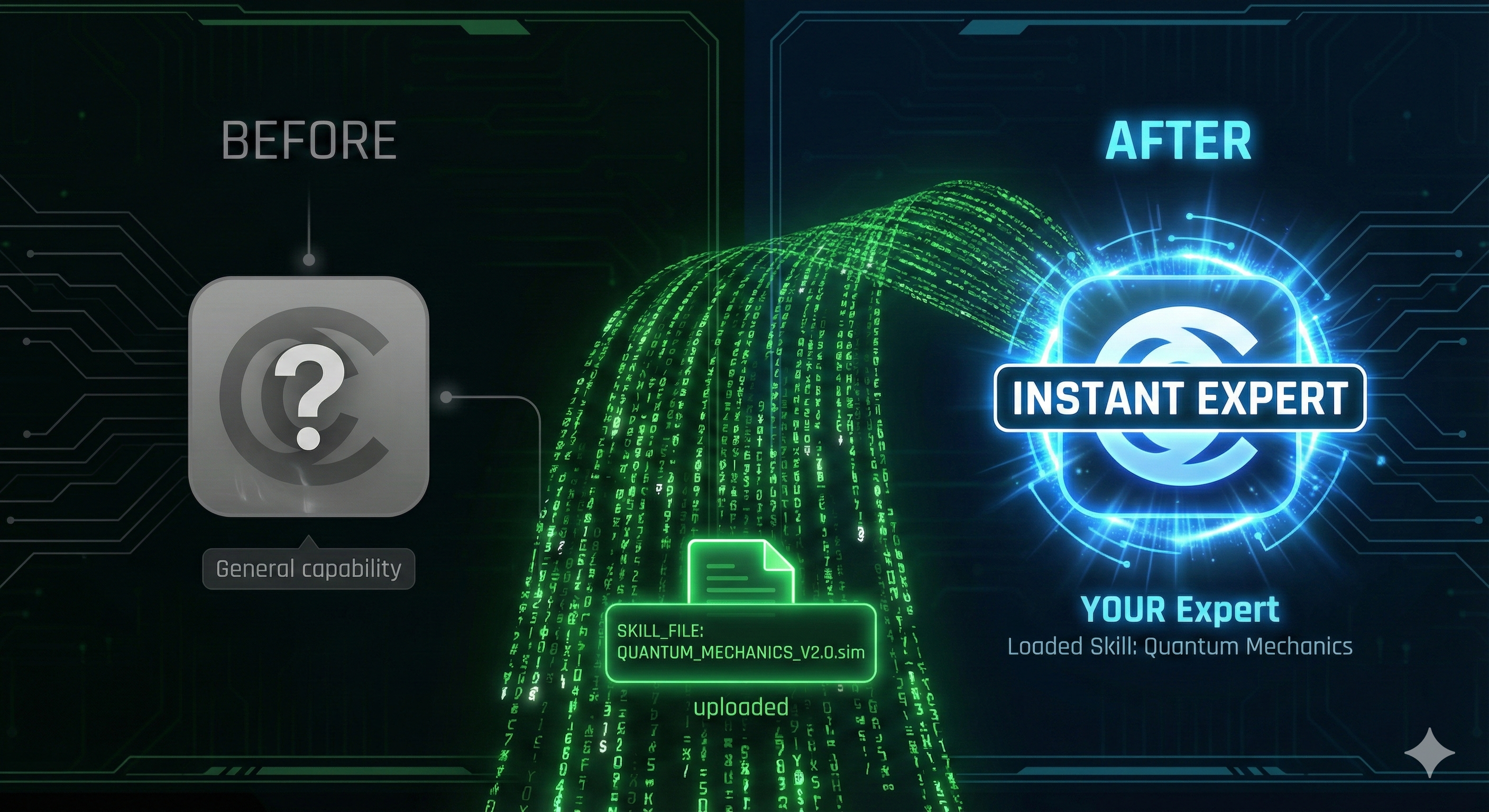
Skills work the same way. When you ask Claude to help with LinkedIn posts and you have a LinkedIn skill, Claude instantly "loads" your expertise—your tone, your structure, your preferences. The knowledge transfers in milliseconds, ready to use.
Trinity (Agent) + Helicopter Program (Skill) = Instant Expert Pilot Claude (Agent) + Your LinkedIn Skill = Instant Expert in YOUR Style
What skills are NOT: Saved prompts you paste in.
The difference is crucial. Skills can work two ways:
-
Automatic activation: You just work, and Claude recognizes when your style guide applies. "Help me write a LinkedIn post about learning AI." → If you have a LinkedIn skill, Claude loads it automatically.
-
Explicit invocation: You mention the skill by name. "Use internal-comms and write a LinkedIn post." → Claude loads exactly what you asked for.
Both approaches work! In this lesson, we'll use explicit invocation so you can clearly see skills in action. Once you're comfortable, you'll find Claude often activates the right skill automatically.
Hands-On: Experience Skills in Action
Enough theory. Let's see skills in action with real examples you'll use every day.
The Skills Lab contains two types of skills:
Works without Python (we'll use these today):
internal-comms- Writing communications like LinkedIn posts, status reports, newslettersbrand-guidelines- Applying brand colors and typography
Requires Python installed (for later):
docx,pdf,pptx,xlsx- These document skills run Python scripts on your machine
Don't have Python? No problem! We'll use internal-comms in this lesson—it works perfectly without any extra setup. You'll install Python in Chapter 16 and unlock the document skills then.
Step 1: Download the Skills Lab
- Go to github.com/panaversity/claude-code-skills-lab
- Click the green Code button
- Select Download ZIP
- Extract the ZIP file
- Open the extracted folder in your terminal
Step 2: First, Try Without a Skill
Open Claude Code in the skills lab directory:
claude
Let's ask for a LinkedIn post about learning AI:
"Write a LinkedIn post about learning how to build software with AI Agents."
Typical output you'll see:
I'm excited to share my journey into AI agent development!

The field of artificial intelligence is rapidly evolving, and I've been exploring
how to build intelligent agents that can automate tasks and enhance productivity.

#AI #MachineLearning #ArtificialIntelligence
This is okay—but it's generic. No personality, no engagement hook.
Step 3: Now Try With the Internal-Comms Skill
Clear the conversation and try again:
# Press Ctrl+C to exit Claude, then run it again
claude
"Use internal-comms and write a LinkedIn post about learning how to build software with AI Agents."
Watch what happens:
⏺ Skill(internal-comms)
  ⎿  Loading…

────────────────────────────────────────────────────────────────────
 Use skill "internal-comms"?
 Claude may use instructions, code, or files from this Skill.

   A set of resources to help me write all kinds of internal communications,
   using the formats that my company likes to use. Claude should use this
   skill whenever asked to write some sort of internal communications...

 Do you want to proceed?
 ❯ 1. Yes
  2. Yes, and don't ask again for internal-comms in this directory
  3. No
Select 1. Yes.
The skill-enhanced output:
🚀 Just started my AI Agent development journey and it's mind-blowing!

I'm learning how to build software agents that can think, learn, and act
autonomously. The possibilities are endless—from automating repetitive tasks
to creating intelligent systems that solve real-world problems.

Key insight: AI agents aren't just about code; they're about understanding
human behavior and designing systems that augment our capabilities.

Has anyone else explored this space? Would love to hear about your experiences
or favorite resources! 🤖💡

#AIAgents #SoftwareDevelopment #AI #FutureOfWork
Notice the difference:
- ✅ Personal, enthusiastic tone
- ✅ Strategic use of emojis (exactly 3)
- ✅ Ends with an engagement question
- ✅ Shares personal insight
- ✅ Professional yet conversational
Step 4: Check Which Skills Are Available
"What skills do I have?"
You'll see all available skills:
⏺ You have the following skills available:

  | Skill           | Description                                                                 |
  |-----------------|-----------------------------------------------------------------------------|
  | docx            | Create, edit, and analyze Word documents                                   |
  | internal-comms  | Write internal communications (status reports, newsletters, FAQs, etc.)     |
  | pdf             | Extract text/tables, create, merge/split PDFs                              |
  | pptx            | Create, edit, and analyze PowerPoint presentations                         |
  | xlsx            | Create, edit, and analyze spreadsheets                                     |
  | skill-creator   | Guide for creating new skills                                              |
  | theme-factory   | Style artifacts with 10 pre-set themes                                     |

To use a skill, just ask me to do something related to it...
"Which skills did you use in our conversation? How did you decide when to activate each one?"
This reveals how Claude automatically recognizes when skills match your requests.
Step 5: Try More Skills
Here are more examples to try (all work without Python):
- "Write a status report for my team about our project progress." (internal-comms skill)
- "Help me draft a company newsletter about our recent achievements." (internal-comms skill)
- "Apply brand guidelines to this document." (brand-guidelines skill)
Each time, Claude will activate the relevant skill based on your request. You can invoke explicitly by name or let Claude detect which skill applies.
Once you have Python installed (covered in Chapter 16), come back and try the document skills:
- "Create a PowerPoint presentation about AI agents." (pptx skill)
- "Create a budget spreadsheet with monthly totals." (xlsx skill)
- "Extract text from this PDF and summarize it." (pdf skill)
Real Example: The Study Notes Assistant
Skills work for any repeated task—especially student workflows.
The problem: A university student struggled with organizing lecture notes. They'd type notes during class or download lecture slides, but the information was messy and unstructured. When exam time came, they had pages of disorganized content.
The solution: They created a skill that transforms their raw lecture notes into structured study materials.
Important: Claude Code works with text, not video. This skill processes text-based notes you already have—from typed notes, lecture slides, or transcripts.
Here's what the skill does:
When user says "process lecture" or "study notes":

1. Ask for the lecture topic
2. Request the text content (typed notes, slide text, or transcript)
3. Extract key concepts and definitions
4. Create a summary with main points
5. Generate 3-5 practice questions
6. Create a "quick review" section for last-minute study
7. Save everything as study-notes/[topic].md
A typical interaction:
User: process lecture

Claude: Ready to process your lecture notes!

What was today's lecture topic?

User: Introduction to Neural Networks

Claude: Great! Please paste your lecture notes or slide content.

User: [pastes their typed notes from class]

Claude: ✅ Study notes saved to study-notes/Neural-Networks-Intro.md

Here's what I created:
- Organized summary of key concepts (neurons, activation functions, backpropagation)
- 5 practice questions with answers
- Quick review sheet with essential formulas
- Connections to previous lessons on machine learning basics

Want me to create flashcards for the key terms?
Why it works: The skill follows a proven study method:
- Immediate processing: Converts messy notes right after class
- Active recall: Practice questions test understanding
- Spaced repetition: Quick review sheet for future sessions
- Connections: Links new concepts to previous knowledge
What you need: Text-based content from:
- Notes you typed during class
- Text from lecture slides (copy-paste)
- Transcripts if available
- Highlighted text from PDF readings
The payoff: Instead of hours reorganizing messy content before exams, they spend 15 minutes right after each lecture. Most importantly, they actually use their notes because they're structured and easy to review.
The skill took about 45 minutes to create. Now it automatically structures every lecture the same way, creating consistent, effective study materials from the text they already have.
Everyday Skills You Could Create
Think about your daily routines. Where do you repeat the same patterns?
For Social Media:
- LinkedIn posts with your professional tone
- Twitter threads that match your style
- Instagram captions with your emoji preferences
For Studying:
- Lecture note organizer (like above)
- Essay outline generator
- Flashcard maker from textbook chapters
For Personal Organization:
- Meeting notes formatter
- To-do list prioritizer
- Weekly goal setter and tracker
For Communication:
- Email templates for different situations
- Thank-you note generator
- Project status updates
Each of these saves you time and ensures consistency in how you present yourself to the world.
Mapping Your First Procedure
Ready to create your own skill? This exercise prepares you for the next lesson where you'll build your first skill.
Step 1: Find Your Repetitive Tasks
Think about your last week. What did you do repeatedly?
Common student patterns:
- 📱 Writing social media posts
- 📚 Organizing study notes
- 📧 Sending emails to professors or groups
- ✨ Making to-do lists or plans
- 💬 Replying to messages in group chats
Quick exercise: Open a notes app and write down 3 tasks you do regularly.
Step 2: Choose One and Define Your Style
Pick one task from your list. Answer these questions:
- When do I do this? (Example: "When I post on LinkedIn about learning")
- How do I like it? (Example: "Friendly but professional, 2-3 emojis, end with question")
- What makes it 'me'? (Example: "I always share a personal insight")
- What should others know? (Example: "I want to encourage engagement, not just broadcast")
Example: LinkedIn Posts for Students
When: Sharing learning milestones or project updates
My style: Start with excitement emoji, share what I learned, include a personal challenge I overcame, end with question to encourage comments
Distinctive: Always honest about struggles, not just successes
Pro tip: People connect with real stories, not perfect highlights
That's your personal style guide ready to become a skill!
Try With AI
Find Your Skill Ideas:
"I'm a student who uses Claude for [describe what you do: studying, social media, projects, etc.]. Help me identify 3 repetitive tasks that would make good skills. For each one, tell me: what the skill would do and why it would save me time."
Practice Your Procedure:
"I want to create a skill for [your chosen task]. Let's practice! Ask me questions about how I like to do this task. Then show me how you'd describe my style as a simple guide someone else could follow."
Get Ready for Next Lesson:
"Based on my [task/thing I repeat], what should I prepare before the next lesson where we actually build skills? What files or information should I have ready?"
Reflection
You've just seen how skills transform Claude from a helpful assistant into YOUR personalized helper.
Think about it:
- Without skills: Every time you need help, you explain your preferences
- With skills: Claude already knows your style and applies it automatically
This is like teaching a friend your preferences—once. Instead of saying "I like my LinkedIn posts friendly but professional" every time, your friend just knows.
Your Next Steps:
- ✅ Downloaded the Skills Lab and tried skills
- ✅ Seen the difference between generic and personalized output
- ✅ Identified tasks you repeat regularly
- ✅ Defined your personal style for one task
Coming Next: In the next lesson, you'll actually CREATE your first skill using the skill-creator skill from the lab. You'll turn your personal style guide into a working skill that activates automatically.
Remember: The best skills are for tasks you do regularly. Start simple—maybe a LinkedIn post skill or a study notes organizer. Build it, use it, refine it. Then create another.
Your AI partnership is about to get a lot more personal. 🚀